How to Create an App on Meta Developers for WhatsApp Business API
Step-by-step guide to creating your application on Facebook Developers and connecting to the WhatsApp Business API (Cloud API) in 2026
Why Do You Need to Create an App on Meta Developers?
To use the WhatsApp Business API (Cloud API), the first step is creating an application on the Meta for Developers dashboard. Through this app you'll get your API token, configure webhooks, manage phone numbers, and control all message sending and receiving.
Without a properly created and configured app, you can't integrate WhatsApp with any system - whether it's a chatbot, CRM, e-commerce platform, or any automation.
Prerequisites
Before you start, you'll need:
- Facebook account - used to access the developer dashboard
- Business portfolio (Business Manager) - if you don't have one, you can create it during the process
- Business email - for app-related contact
- Phone number - that is not registered on any WhatsApp account (neither Business App nor personal)
If the number is already linked to WhatsApp, you need to unlink it before using it with the API. Meta allows migrating numbers from WhatsApp Business App to the API without losing conversation history.
Step 1: Access Meta for Developers
Go to developers.facebook.com and log in with your Facebook account. Then click "My Apps" in the top menu, followed by "Create App".
Step 2: App Details
In the first step, you need to fill in:
- App name - choose a name that identifies your project (can be changed later). Example: your company or product name.
- App contact email - a valid email you check regularly. Meta will use this email to communicate about policies, restrictions, or issues with your app.
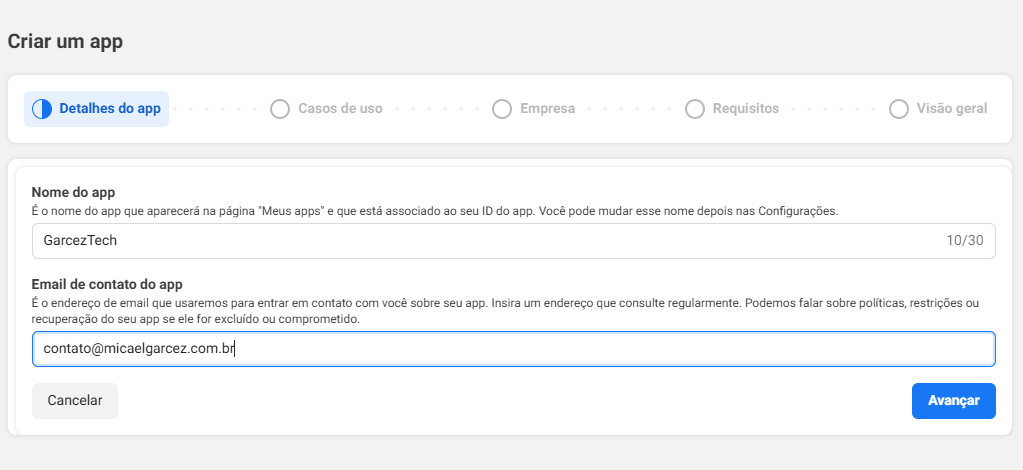
Click "Next" to continue.
Step 3: Select the Use Case
In this step you choose what the app will do. For the WhatsApp Business API:
- In the left filter, select "Business Messaging"
- Check the option "Connect with customers on WhatsApp"
This option allows you to start conversations on WhatsApp, send notifications, create click-to-WhatsApp ads, and provide customer support.
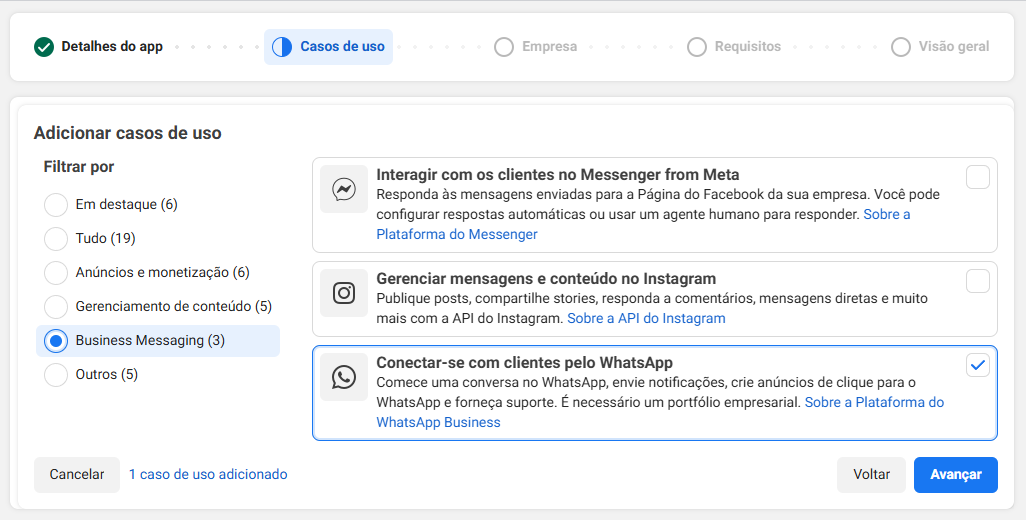
Click "Next".
Step 4: Connect to Business Portfolio
Here you connect the app to your business portfolio (formerly Business Manager).
- If you already have a verified portfolio, it will appear in the list - just select it
- If you don't have one yet, click "Create a business portfolio" and follow the instructions
Business portfolio verification is mandatory to publish the app and access user data via Meta's API.
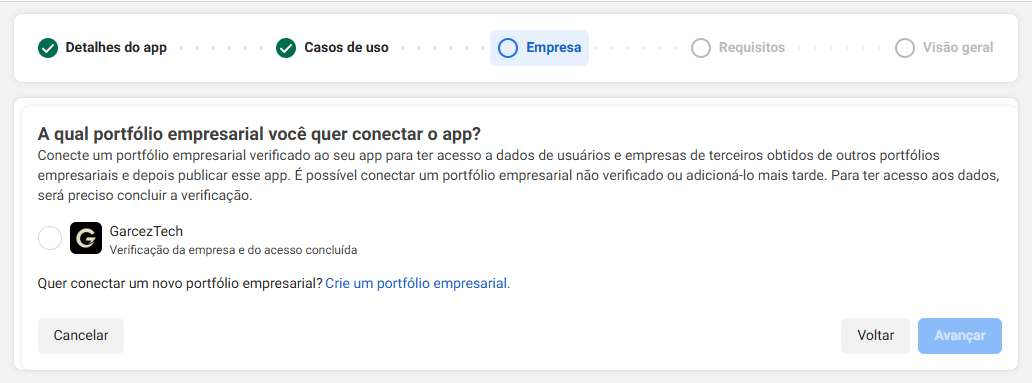
Click "Next".
Step 5: Publishing Requirements
Before publishing the app, Meta requires you to complete three verification steps:
- Business verification - prove your company is a legitimate business entity to access user data through Meta APIs
- Access verification - confirm that your company is authorized to access data from another company's portfolio (when applicable)
- App review - answer questions about data usage, processing, and protection, then submit for Meta's review
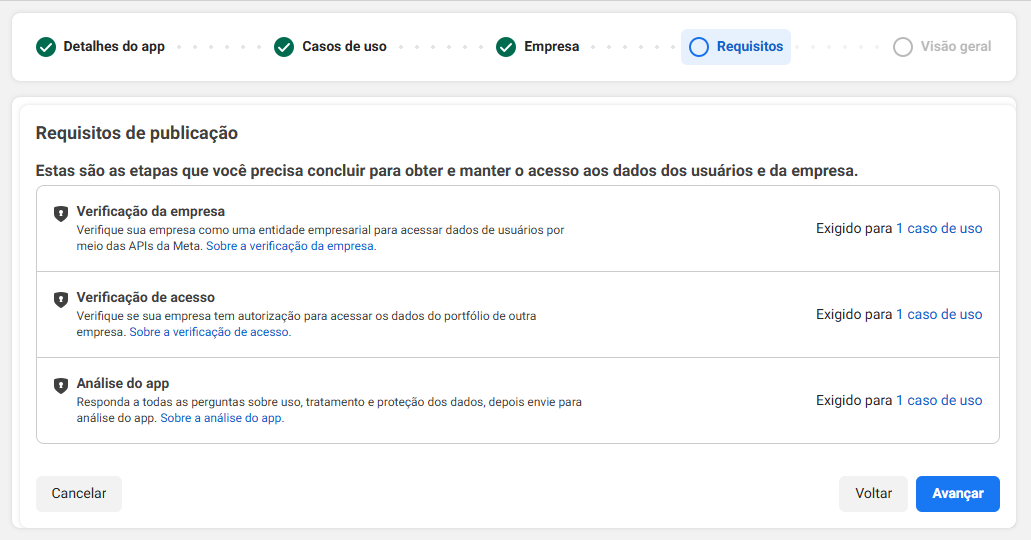
Click "Next" to see the summary.
Step 6: Overview and Creation
On the last screen you see a summary of everything you configured:
- App details - name and email
- Use cases - WhatsApp Business selected
- Business - business portfolio connected
- Requirements - pending verification steps
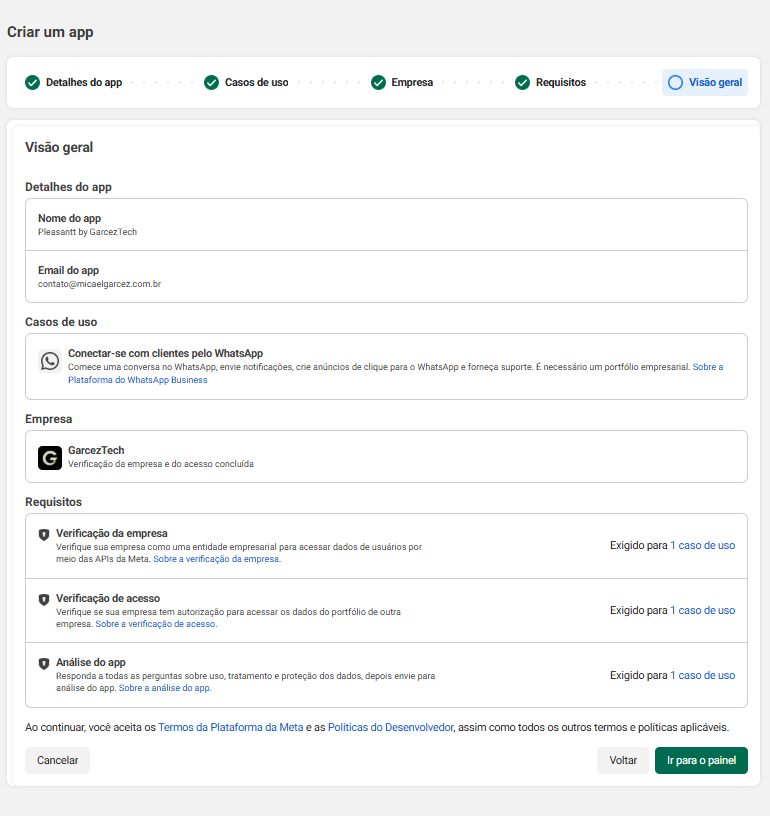
By clicking "Go to Dashboard", the app is created and you're taken directly to the admin dashboard where you can start configuring the WhatsApp API.
Next Steps After Creating the App
With the app created, you need to:
- Add a phone number - in the WhatsApp section of the dashboard, add and verify the number to be used
- Generate a permanent access token - create a System User in Business Manager and generate a token with
whatsapp_business_managementandwhatsapp_business_messagingpermissions - Configure the webhook - set the URL that will receive WhatsApp events and messages in real time
- Create message templates - to send active messages (outside the 24-hour window), you need Meta-approved templates
- Verify your business - complete business verification to exit development mode and send messages to any number
Development mode: while the app is in development, you can only send messages to numbers registered as "test". To send messages to any number, you need to publish the app and complete business verification.
Common Mistakes
Expired token
The temporary token generated in the dashboard expires in 24 hours. For production, always use a permanent token created via System User.
Number already registered on WhatsApp
If you try to add a number that's already linked to personal WhatsApp or Business App, the API will return an error. Unlink the number first.
Webhook not receiving messages
Make sure the webhook URL is publicly accessible (HTTPS) and that you subscribed to the correct fields (messages, message_status).
Need Help?
I'm a specialist in Meta API integrations and have helped several companies implement the WhatsApp Business API from scratch. If you need technical support to configure your app, develop chatbots, or integrate with your system, I can help.
Message me on WhatsApp to discuss your project.